 Monestra
Getting started
Installing and first launch
What Monestra asks you on day one, what it decides for you, and the four settings worth changing before you type anything.
Monestra is one app that runs natively on macOS, iPadOS and iOS. One purchase covers all three; your Apple Account ties them together.
Requirements#
| iPhone / iPad | iOS 18 or later |
|---|---|
| Mac | macOS 15 or later, Apple silicon or Intel |
| Sync (optional) | An iCloud account signed in, with iCloud Drive on |
| Market data (optional) | A network connection, and your own API key for share prices |
| Assistant (optional) | A device that supports Apple Intelligence |
Nothing on that list except the OS is required. Monestra runs completely on a Mac that has never been signed in to iCloud.
The first three screens#
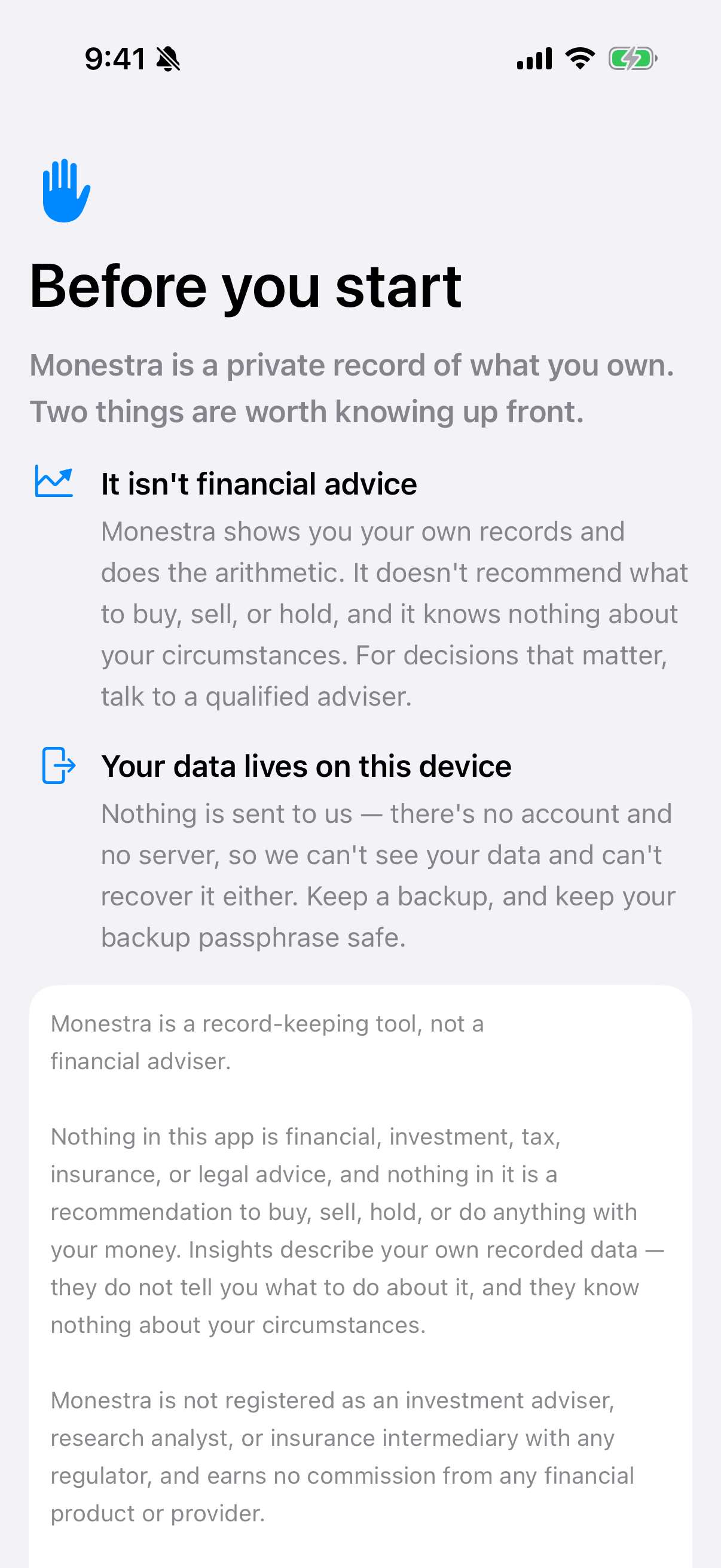
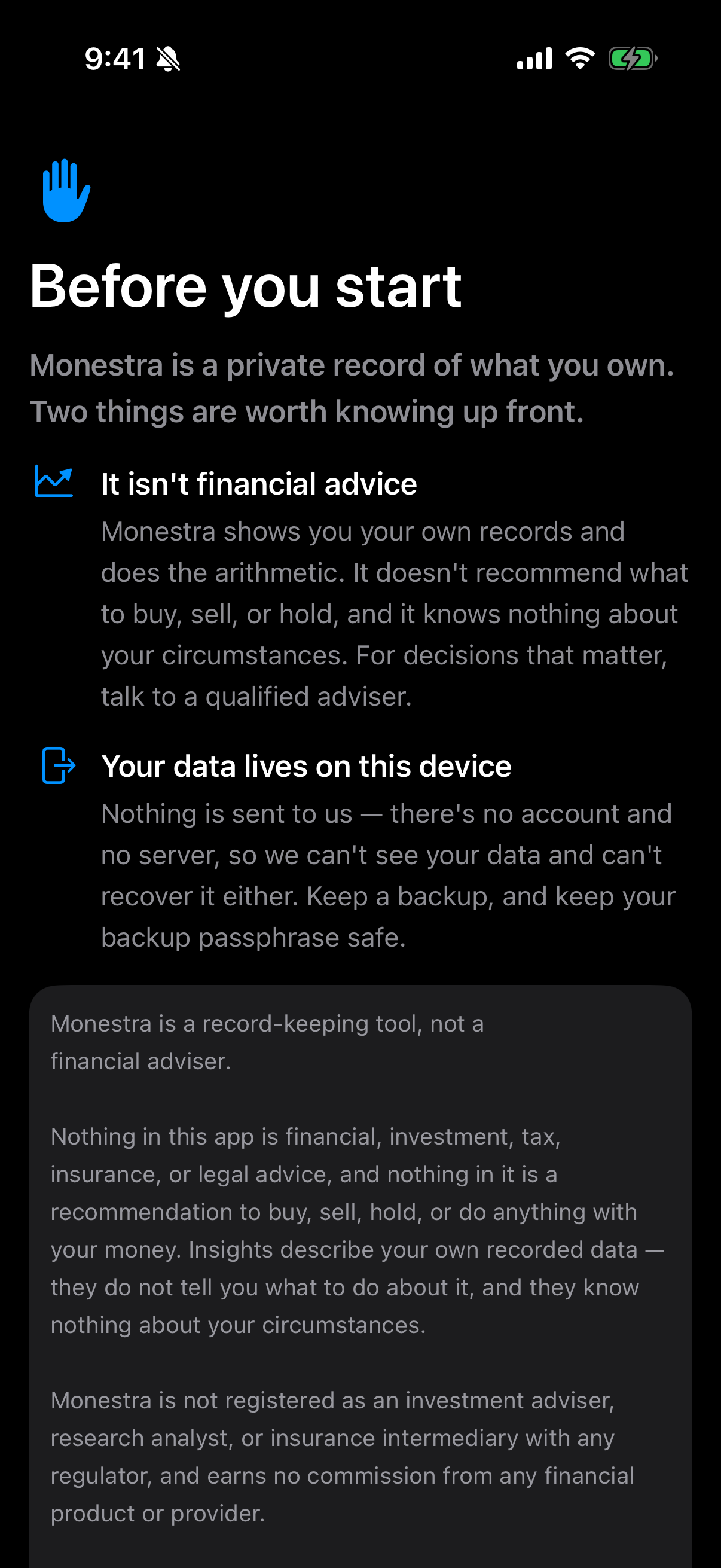
- The disclaimer. Before anything else, Monestra shows what it is and — more to the point — what it is not: a record-keeper, not an adviser, not a broker, and not a source of financial advice. Read it and tap I understand. Monestra records which version you accepted and when; you can read the whole document any time under Settings ▸ About ▸ Legal, offline.
- The lock. Monestra locks itself by default. It uses Face ID, Touch ID or Optic ID where available and falls back to your device passcode where not. This is the app's own gate, on top of the device's.
- An empty Dashboard. No sample data, no demo account, no onboarding wizard asking you to pick goals. Monestra starts genuinely empty, because every figure it will ever show has to come from something you recorded.
Four settings worth changing now#
Monestra's defaults are chosen to be safe rather than convenient. Three of them are worth a look before you start typing, and one is worth turning on straight away.
1. Your currency — Settings ▸ General#
Monestra picks a default from your device region. Everything you enter is stored in the currency you enter it in; this setting only decides what the summary figures are shown in. Get it right first and the totals read correctly from the start.
2. Your financial year — Settings ▸ General#
April–March, January–December, or a custom start month. Reports, year-based grouping and anything that says "this year" all read from this one place, so no two screens can disagree about when your year begins.
3. Masking — Settings ▸ Privacy & Security#
Masking replaces every amount with •••• at a tap. By default Monestra opens unmasked and you mask on demand with the eye button. If you routinely open the app where people can see the screen, turn on Mask values on launch and invert that.
4. iCloud sync — Settings ▸ Backup & Restore#
If you have more than one device, turn it on now rather than later. Sync uses your own private iCloud database — see iCloud sync for what that does and does not guarantee.
What Monestra does not ask for#
No email address. No account. No password. No permission to read your contacts, your photos, your location or your health data. The only system permission Monestra ever requests is notifications, and only at the moment you first switch a reminder on.